
Integrations / Lead Sync

Slack
Post a message to a Slack channel every time you capture a lead, so your team can follow up while the conversation is fresh.
How it works#
Once Slack is connected and you've picked a channel, TapSnap posts each new lead there as soon as it's captured. The message is titled New lead: followed by the person's name, and lists their company, title, email, phone, website and how they were captured, with your notes underneath.
Please note
- TapSnap can post to public channels. Private channels and direct messages aren't supported.
- You don't need to invite TapSnap to the channel first.
- Leads only start posting once you've chosen a channel.
Before you start#
- A TapSnap Pro plan. You can upgrade in the TapSnap app.
- Permission to add apps to your Slack workspace. Some workspaces need an admin to approve new apps.
- Your TapSnap dashboard. Log in at tapsnap.me, or tap View Web Dashboard in the TapSnap app.
Connect Slack#
In your dashboard, click Integrations in the left menu.
Slack is under Lead Sync.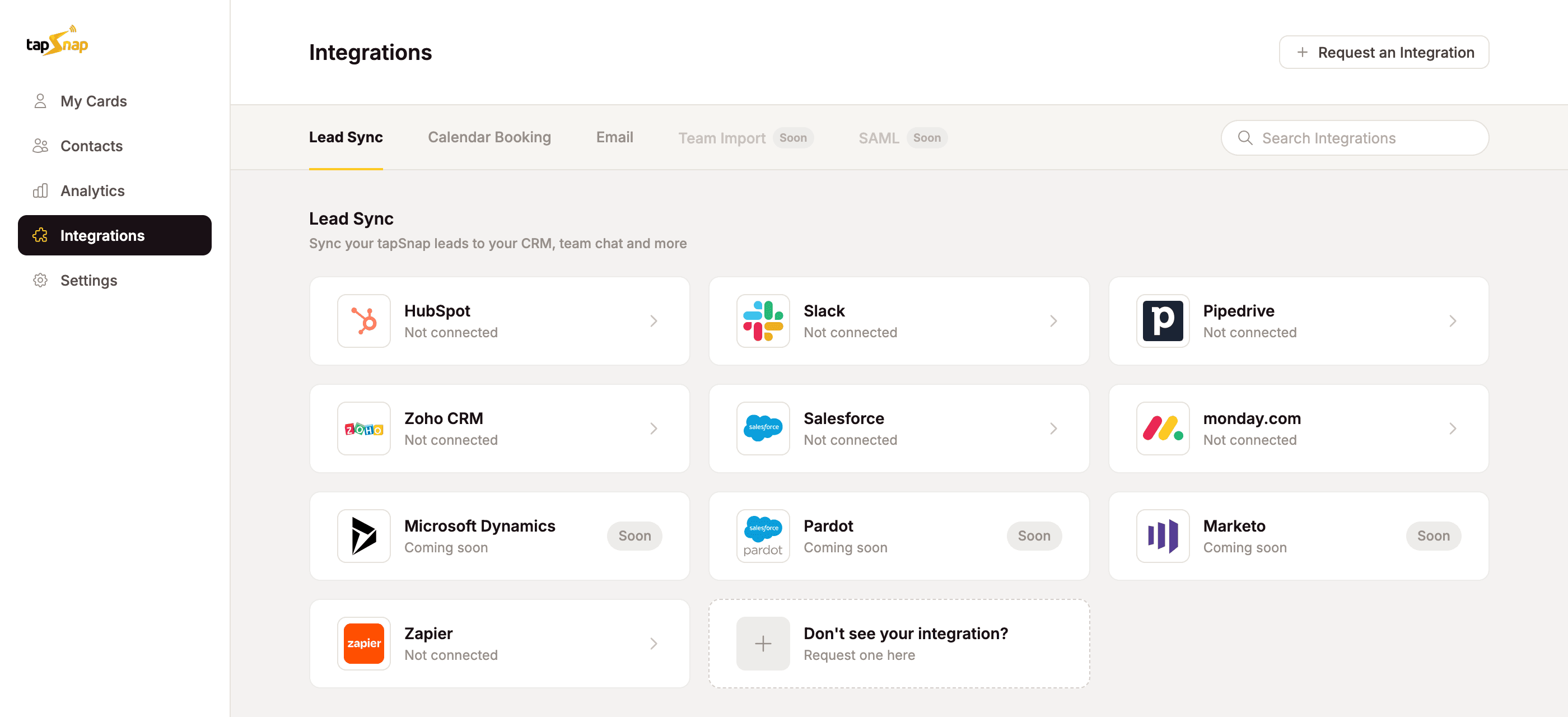
TapSnap dashboard: the Integrations page Click the Slack tile, then Connect Slack.
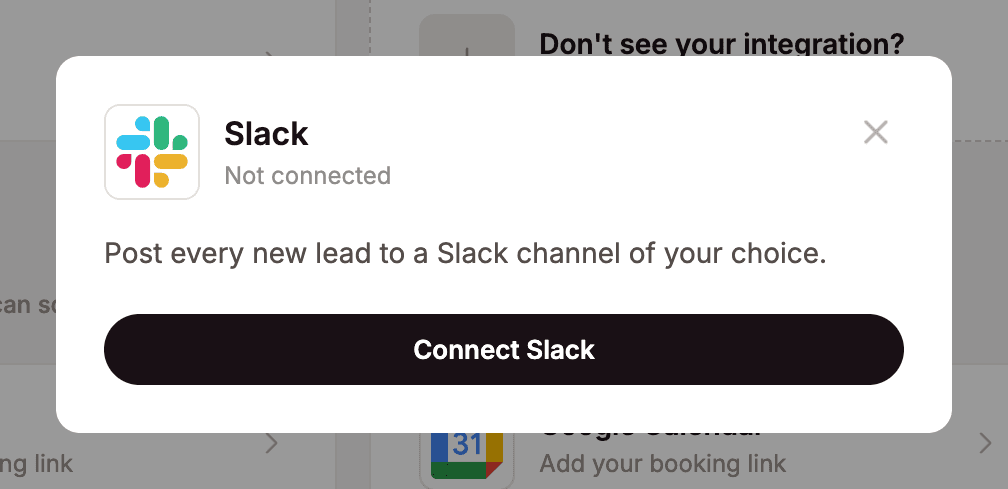
The Slack window before you connect Pick your workspace in Slack and click Allow.
TapSnap asks to see your public channels and to post messages.Back in TapSnap, open the Slack tile and choose a channel.
Under Post new leads to, pick the channel and click Save. Then click Send a test lead to post a sample, Taylor TestLead, to that channel.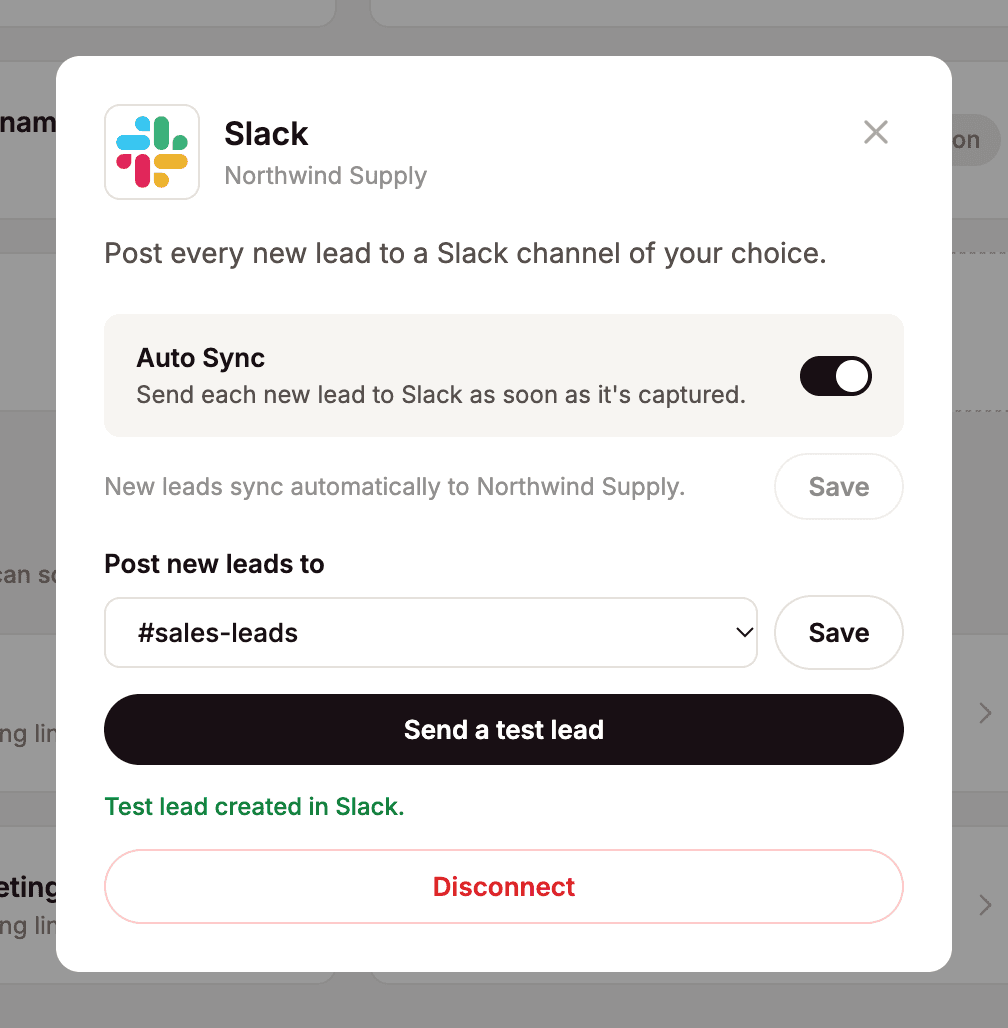
Choosing the channel, then sending a test lead
Auto Sync#
The Auto Sync switch decides whether new leads go to Slack the moment they're captured. It's on when you connect. To pause it, open the Slack tile, turn Auto Sync off and click Save. New leads then stay in TapSnap until you send them from Contacts.
Post leads you already have#
To post a lead you captured earlier, open Contacts, click the sync icon on the lead's row (or Sync to CRM on the lead's page) and choose Slack. You can also tick several leads and use Sync to CRM in the bar that appears. Sending a lead that was already posted posts it again.
Disconnect or reconnect#
To stop sending leads, open the Slack tile and click Disconnect. TapSnap removes its access, and everything already in Slack stays where it is. A workspace admin can also remove the TapSnap app from the workspace's app settings in Slack.
If Slack stops accepting TapSnap's access, for example because the app was removed on the Slack side, the tile shows Reconnect. Open it and click Reconnect Slack, then send any leads that were missed from Contacts.
Troubleshooting#
The Slack window says my plan doesn't include CRM sync.
A lead didn't reach Slack.
Can I post to more than one channel?
Nothing is posting, and the test lead fails.
Need help?
Email support@tapsnap.co or chat with us from the Help center. Tell us which integration you're setting up and what you see on screen.