
Integrations / Email
Email signature
Make a branded email signature from your TapSnap card, with your photo, logo and a QR code that opens your card, and add it to Gmail, Outlook or Apple Mail.
How it works#
The signature builder fills in your details from your card. You choose a style, adjust what's shown, copy the signature and paste it into your email app. Every email you send then carries a link and a QR code to your card. Email signatures are free on every plan.
Create your signature#
In your dashboard, click Integrations in the left menu.
Email Signature is under Email.
TapSnap dashboard: the Integrations page Click the Email Signature tile, then Open the signature builder.
You can also get there from your card: My Cards › edit a card › Email Signature.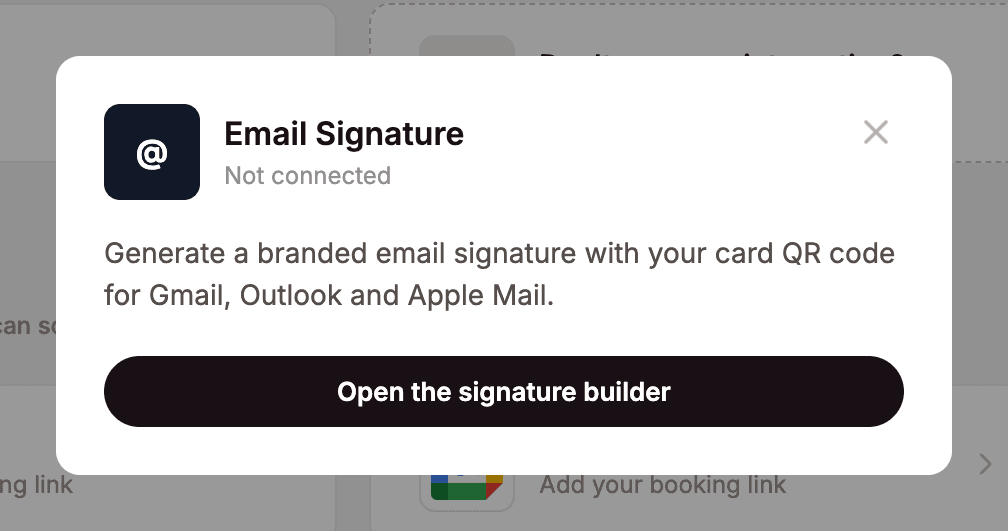
The Email Signature tile Pick a style and check your details.
Choose Minimal, Professional or Bold. Then use the switches on the left to show or hide your photo, pronouns, job title, company, location, contact details, logo, banner, QR code, social icons, card link and a disclaimer. The preview on the right updates as you go.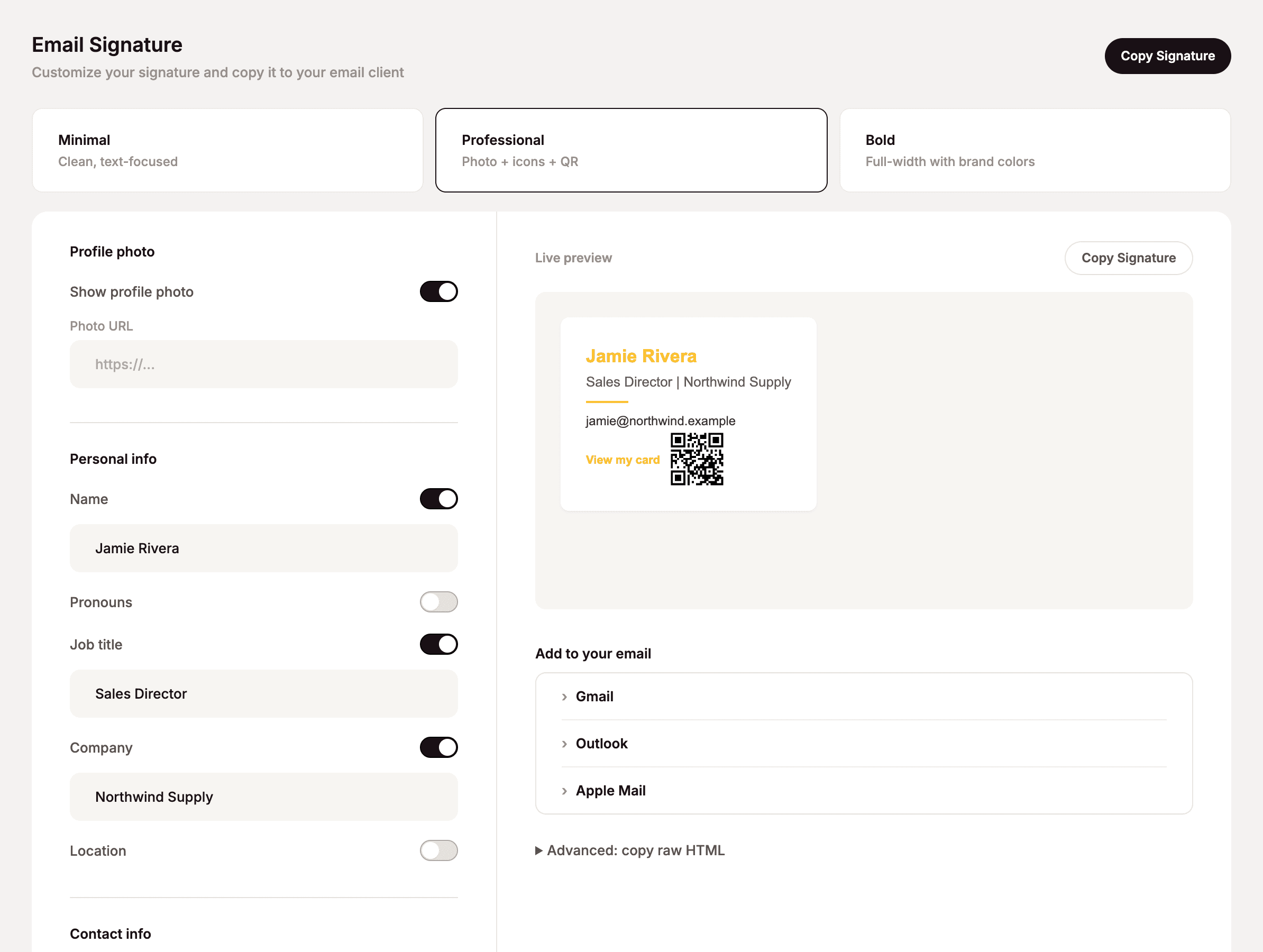
The signature builder, with the live preview Click Copy Signature.
Paste it into your email app.
Add it to your email app#
Gmail
- In Gmail, open Settings (the gear) › See all settings.
- Scroll to Signature and click Create new.
- Paste with Ctrl+V (Cmd+V on a Mac), then click Save Changes at the bottom of the page.
Outlook
- Open Settings › View all Outlook settings › Mail › Compose and reply.
- Paste into the signature editor and click Save.
Apple Mail
- Open Mail › Settings › Signatures and click +.
- Paste with Cmd+V, then close the window. It saves on its own.
Using another email app? Open Advanced: copy raw HTML under the preview and paste the HTML wherever your app accepts it.
Troubleshooting#
The signature looks different after pasting.
I changed my card. Do I need a new signature?
Need help?
Email support@tapsnap.co or chat with us from the Help center. Tell us which integration you're setting up and what you see on screen.