
Integrations / Calendar Booking


Booking links
Add your Google Calendar, Microsoft Bookings, HubSpot Meetings or Chili Piper booking page to your digital card, so new contacts can book a meeting with you right away.
How it works#
Each of these tiles adds a Book a meeting link to your card. Anyone who opens your card can tap it and pick a time in your scheduling tool. There's nothing to sign in to: you paste the link to your booking page and TapSnap does the rest. Booking links are free on every plan.
Using Calendly? It has its own guide, because you can connect your account and pick a page from a list: Calendly.
Before you start#
- The link to your booking page. See where to find it below.
- Your TapSnap dashboard. Log in at tapsnap.me, or tap View Web Dashboard in the TapSnap app.
Add a booking link#
In your dashboard, click Integrations in the left menu.
The booking tiles are under Calendar Booking.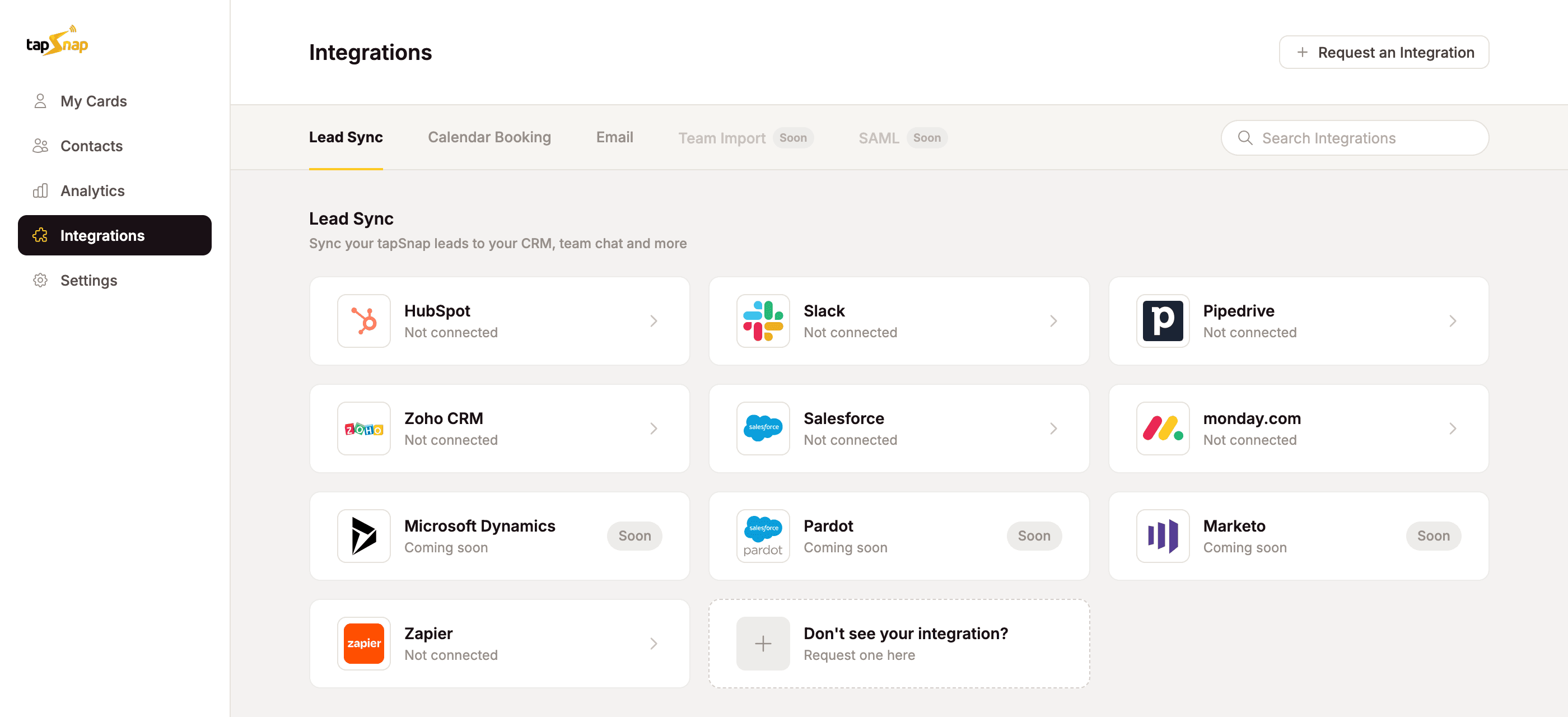
TapSnap dashboard: the Integrations page Click the tile for your scheduling tool.
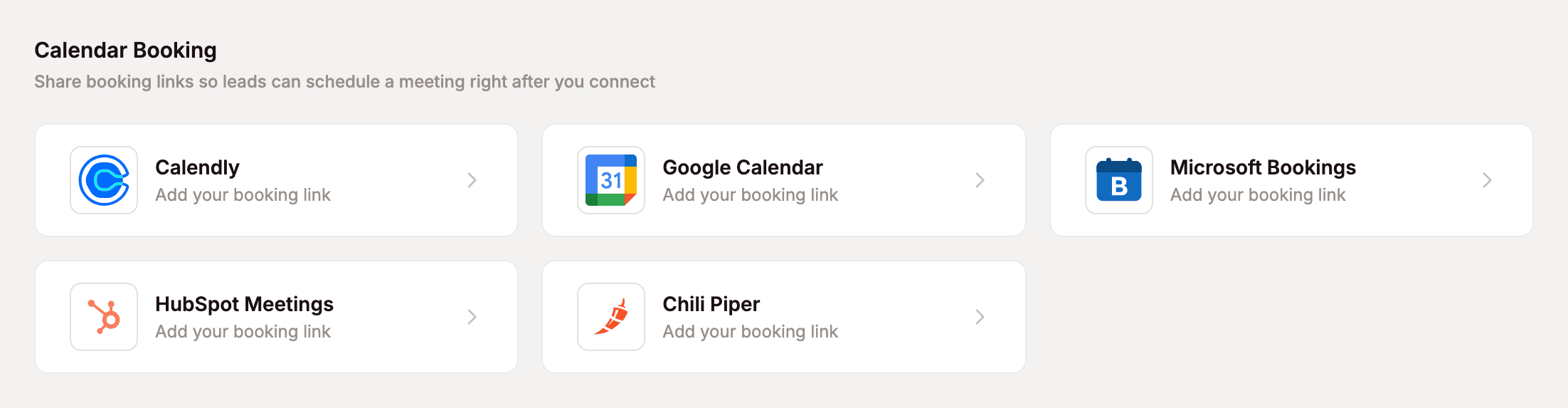
The Calendar Booking tiles on the Integrations page Paste your booking link and click Add to my card.
If you have more than one card, choose it under Add to card first. When you see On your card ✓, the link is live.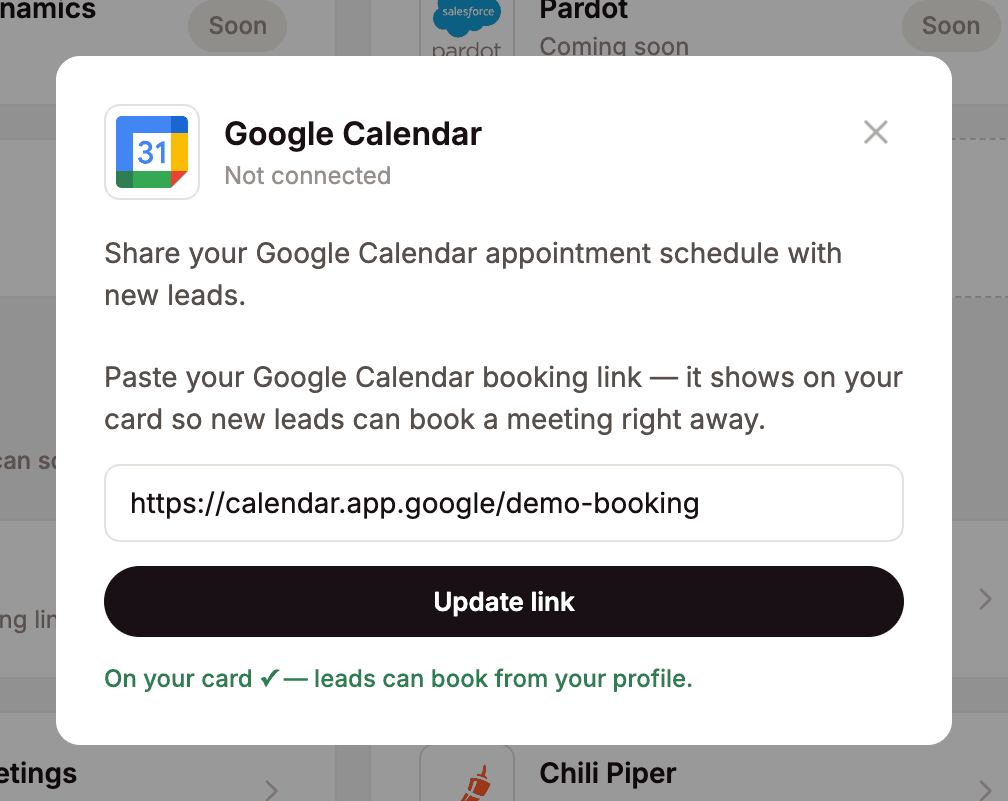
A Google Calendar booking link, added to the card
If the link doesn't look like it came from that tool, TapSnap warns you before you save, so you can check it. To change the link later, paste the new one and click Update link.
Where to find your booking link#
| TapSnap lead | Your link usually looks like |
|---|---|
| Google Calendar | calendar.app.google/… (the booking page of an appointment schedule) |
| Microsoft Bookings | outlook.office.com/bookwithme/… (your Bookings with me page) |
| HubSpot Meetings | meetings.hubspot.com/… (the link of your meetings scheduling page) |
| Chili Piper | yourteam.chilipiper.com/… (your booking link) |
On your card, the link is called Book a meeting (Google), Book a meeting (Microsoft), Book a meeting (HubSpot) or Book a meeting (Chili Piper). You can add more than one.
Troubleshooting#
It says this card can't edit links from the web yet.
How do I remove a booking link?
Need help?
Email support@tapsnap.co or chat with us from the Help center. Tell us which integration you're setting up and what you see on screen.