
Integrations / Lead Sync

Salesforce
Send every lead you capture with TapSnap to Salesforce as a Lead. A person who is already a Lead in Salesforce is updated instead of added twice.
How it works#
Once Salesforce is connected, each new lead in your TapSnap contacts becomes a Salesforce Lead as soon as it's captured, with Lead Source set to tapSnap so you can report on them.
Please note
- TapSnap writes to the Lead object only. It doesn't create Contacts, Accounts or Opportunities.
- Leads are matched by email address. If a Lead with that email already exists, TapSnap updates it with the new details. A lead without an email is always added as a new Lead.
- Your Salesforce duplicate rules still apply. If one blocks a new Lead, TapSnap shows the reason on the lead in Contacts and doesn't keep retrying.
Before you start#
- A TapSnap Pro plan. You can upgrade in the TapSnap app.
- A Salesforce user who can create and edit Leads and has API access. Enterprise, Unlimited, Performance and Developer editions include API access.
- Your TapSnap dashboard. Log in at tapsnap.me, or tap View Web Dashboard in the TapSnap app.
Connect Salesforce#
In your dashboard, click Integrations in the left menu.
Salesforce is under Lead Sync.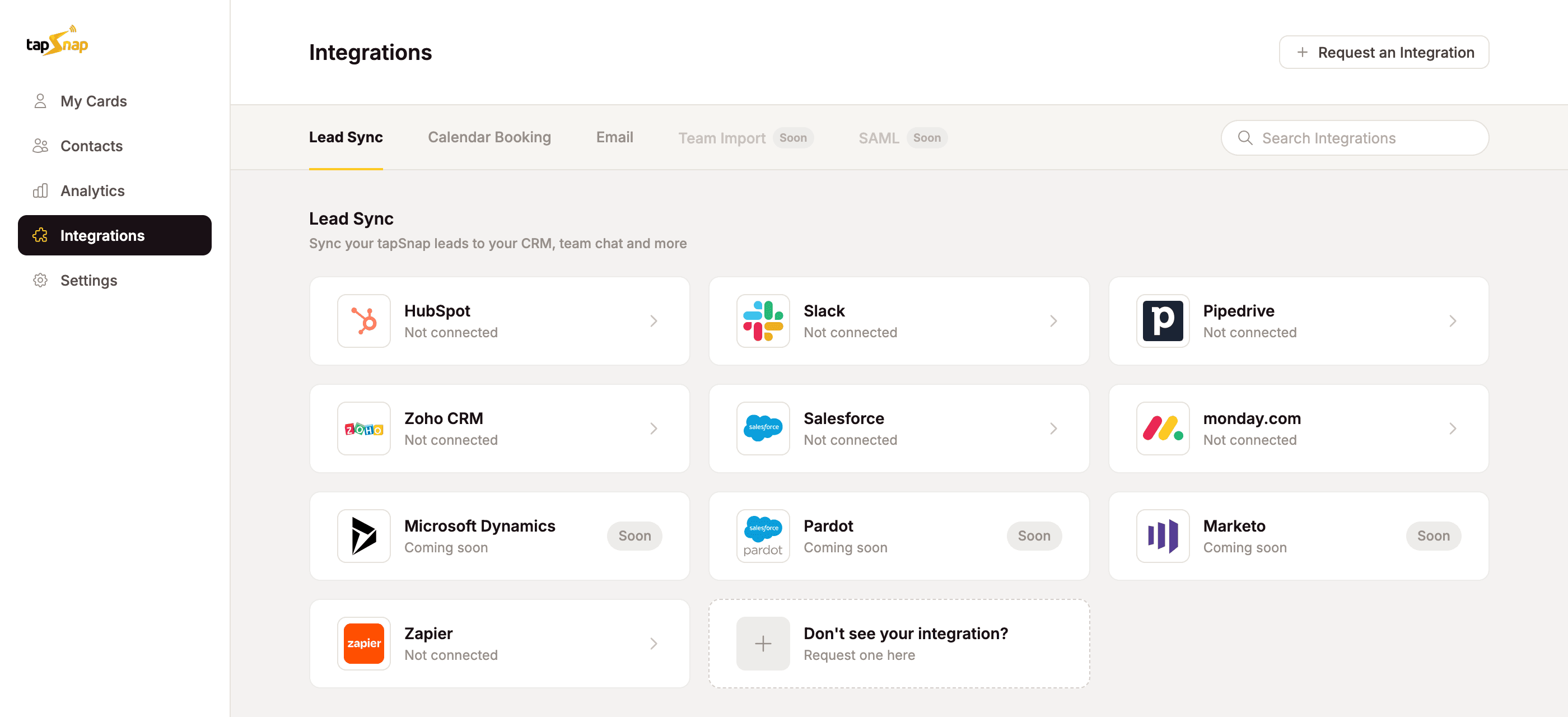
TapSnap dashboard: the Integrations page Click the Salesforce tile and choose your environment.
Pick Production for your live org, or Sandbox to try TapSnap with a few leads first. Sandbox connects through test.salesforce.com. Then click Connect Salesforce.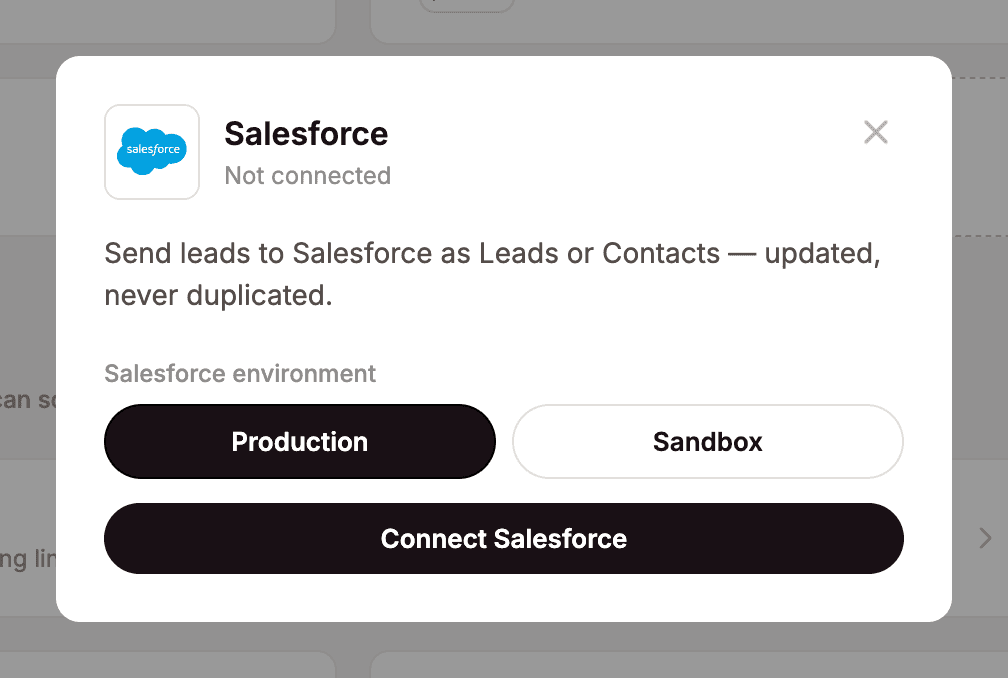
The Salesforce window, with the environment choice Log in to Salesforce with the user TapSnap should act as.
TapSnap creates and updates Leads as this user.Click Allow to give TapSnap access.
You're taken back to your TapSnap dashboard.
You'll see Salesforce connected successfully, and the tile shows Connected with your org name.
Send a test lead#
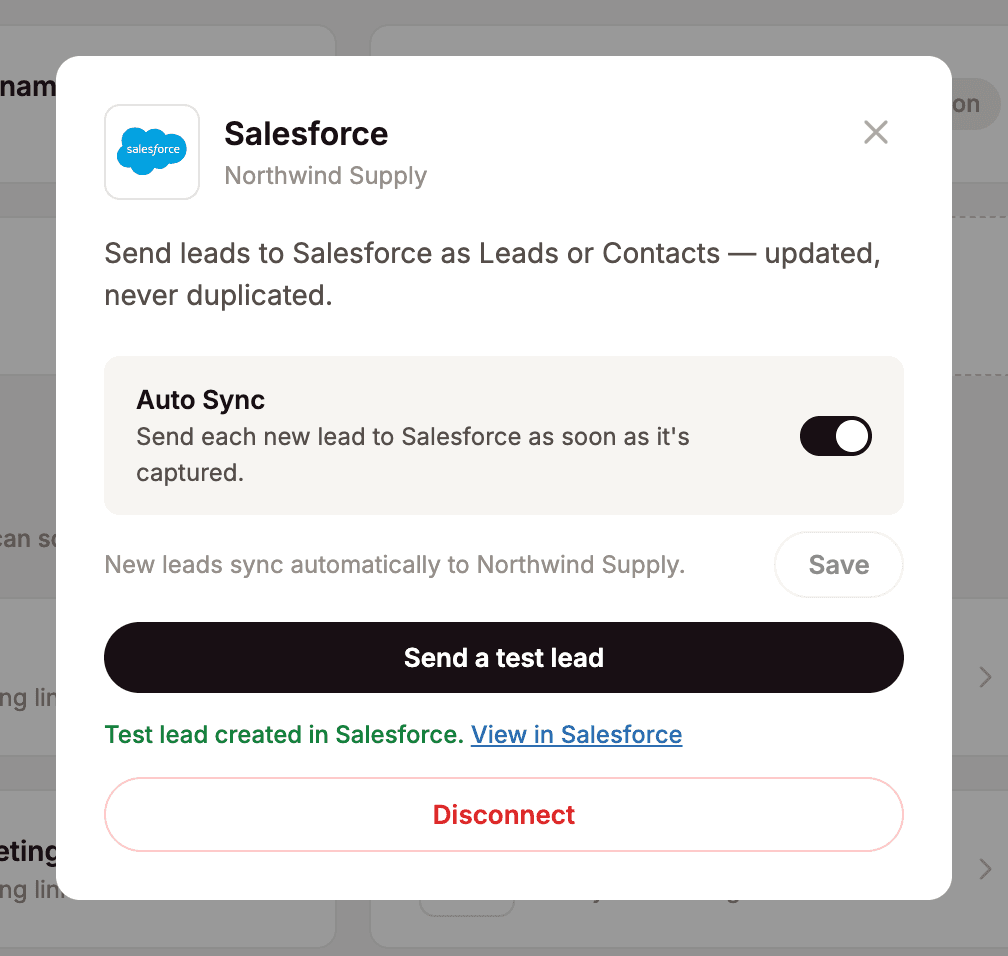
Open the Salesforce tile and click Send a test lead. TapSnap sends a sample, Taylor TestLead (test-lead@tapsnap.me), straight to Salesforce as a Lead, and shows a link to open it. The test lead isn't added to your TapSnap contacts, and you can delete it from Salesforce afterwards.
Auto Sync#
The Auto Sync switch decides whether new leads go to Salesforce the moment they're captured. It's on when you connect. To pause it, open the Salesforce tile, turn Auto Sync off and click Save. New leads then stay in TapSnap until you send them from Contacts.
Send leads you already have#
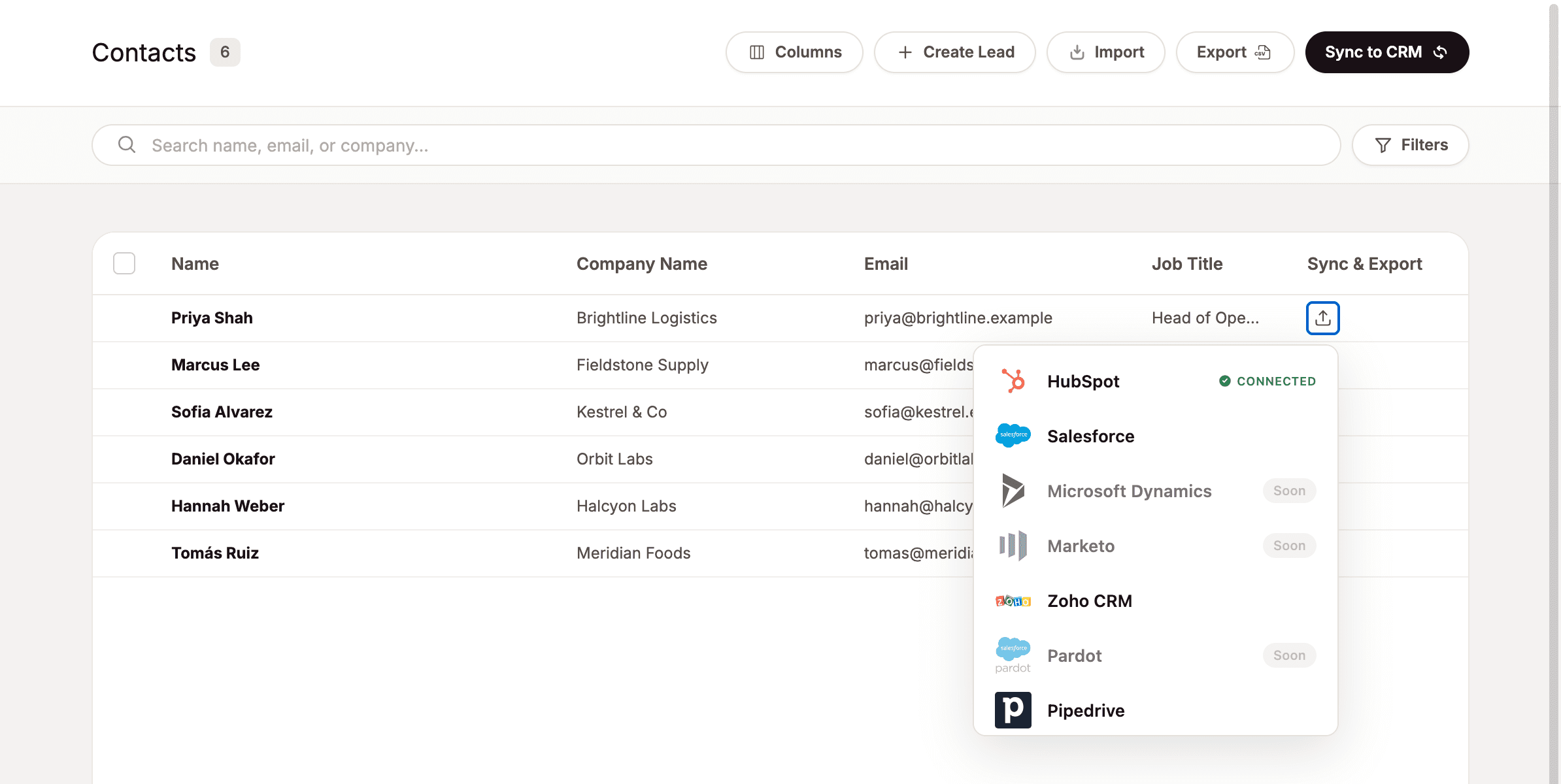
Auto Sync only sends new leads. To send leads you captured before connecting, or while Auto Sync was off, open Contacts and use Sync to CRM:
- One lead: click the sync icon on the lead's row, or Sync to CRM on the lead's page, and choose Salesforce.
- Some leads: tick them, then click Sync to CRM in the bar that appears.
- All leads: with nothing ticked, click Sync to CRM above the list and confirm.
A lead that reached Salesforce shows the Salesforce logo in Contacts. Hover over the logo to see when it was last exported.
What gets synced#
| TapSnap lead | Salesforce Lead |
|---|---|
| Name | First Name and Last Name. Salesforce needs a last name, so a lead without a name is saved as "Unknown". |
| Email, also used to find a Lead that already exists | |
| Phone | Phone (the mobile number, when the lead has one) |
| Company | Company. Salesforce needs one, so a lead without a company gets "—". |
| Job title | Title |
| Website | Website |
| Notes | Description |
| (new Leads) | Lead Source: tapSnap |
When TapSnap updates an existing Lead, it never writes the "Unknown" or "—" placeholders over a real name or company.
When you edit a lead
If you edit a lead in TapSnap after it reached Salesforce, TapSnap updates the same Lead with the fields you changed. Clearing a field in TapSnap doesn't clear it in Salesforce.
Disconnect or reconnect#
To stop sending leads, open the Salesforce tile and click Disconnect. TapSnap removes its access, and everything already in Salesforce stays where it is. An admin can also revoke TapSnap's access in Salesforce Setup, under Connected Apps OAuth Usage.
If Salesforce stops accepting TapSnap's access, for example because the app was removed on the Salesforce side, the tile shows Reconnect. Open it and click Reconnect Salesforce, then send any leads that were missed from Contacts.
Troubleshooting#
The Salesforce window says my plan doesn't include CRM sync.
A lead didn't reach Salesforce.
A lead failed with a duplicate rule message.
The person is already a Contact in Salesforce, but TapSnap added a Lead.
How do I move from Sandbox to Production?
Need help?
Email support@tapsnap.co or chat with us from the Help center. Tell us which integration you're setting up and what you see on screen.